Showing posts with label Technology. Show all posts

Wednesday, 12 November 2014

Top 5 Android L Lollipop Tips and Tricks

| |
0 comments


We are here with the top 5 Android L Lollipop Tips and Tricks which you must know.Android L update is started to rollout on some of the high-end mobiles and even many budget low-end mobiles will  get Android Lollipop update soon.we have listed some of the unknown hidden tips and tricks of Android L Lollipop 5.0.If you don’t know what to do with Android L you can use these some of the hidden tricks to getting full control over your latest Android OS.So here is the tips and tricks that you have to about Android L Lollipop mobiles.

lollipop Top 5 Android L Lollipop Tips and Tricks

Top 5 Android L Lollipop Tips and Tricks:

1.Screen Pinning:
Before getting to know this trick first let us know what is screen pinning.Screen pinning allows you to pin the particular screen to your Android device.By enabling this function, no other setting or app can be opened except the pinned screen.This could be useful when you are in a situation to handover your mobile to your friends or unknown persons.
To enable screen pinning go to Settings>security>Screen pinning>on
Now open the recent apps and you can see the blue colored pin symbol icon.Bring the apps you want to pin and click on the pin button.
To exit the pinned screen simply press and hold the back and recent apps button together.

2.Ambient Display:

This feature is little different from Motorola Moto display or Active display.Ambient display will turn on the screen when you pick up the phone from the table.You no need to swipe the screen to unlock, but this feature is only available on Nexus 6 and Nexus 9.
To turn ON the Ambient display go to Settings>Display>Ambient Display>ON

3.Notification privacy:

One of the greatest features of Android L update is it shows the notification on lock screen itself.But the sad part is it shows the notification even when your phone secured with password or pattern lock.So you can set the notification privacy to choose which type of notification to be displayed in lock screen.
To set privacy for notification on Android L lock screen go to Settings>Sounds and Notifications>When Screen is locked and select from the following options.
android L Top 5 Android L Lollipop Tips and Tricks


4.Interruption Settings:

Interruption settings allow you to put your mobile on silent for the hours of time you wish.You can also set priority notification for which you want to get the notification.To set this click, the volume button and you will get this popup volume setting screen.

android l volume Top 5 Android L Lollipop Tips and Tricks

  • In None option you can mute the phone for indefinitely or you can set hours.
  • In the priority menu, you can set the phone to mute or silence for  everything except calls, messages or reminders.You can set this by clicking the priority settings.

5.Android Lollipop Easter Egg:

Android always hides some Easter egg in its every version of Android.In Android Lollipop, the game is hidden inside which is inspired from addictive game Flappy Bird.Here is the trick to see this go to setting>About phone and tap on Android version.Now you will get a Lollipop Symbol and tap them to change the color of Lollipop.To open this game tap and hold the Lollipop.
screenshot 2014 10 17 12 20 54 1200x1920 Top 5 Android L Lollipop Tips and TricksHere are the top 5 Android L Lollipop Tips and Tricks which you can try out in your Android Lollipop mobiles.If you have found some cool tricks then do comment it bellow.For more update do like our Facebook Fan page and stay updated
Read More

Thursday, 6 November 2014

18 Best Whatsapp Tricks

| |
0 comments

18 Best Whatsapp Tricks and Tips for iPhone Android in 2014

We all know that recently Facebook bought WhatsApp messenger for $19 Billion. WhatsApp deserves this huge amount because of its awesome user interface. WhatsApp is available for all the major mobile platform OS. It is estimated that WhatsApp has more than 400 million active users around the world. Most of the people were attracted towards it because of its fast message delivery service and some other cool features. Here in this post I am sharing some cool WhatsApp tips and tricks that every WhatsApp user must know. From this post, you will get tricks to hide last seen feature, hide profile picture and status, how to use whatsApp for life long and many other WhatsApp tips and tricks. I don’t want to waste time anymore, so coming to the point.
whatsapp-tips-tricks-android

Best WhatsApp Tips and Tricks:

1. Hide Last seen feature in WhatsApp:

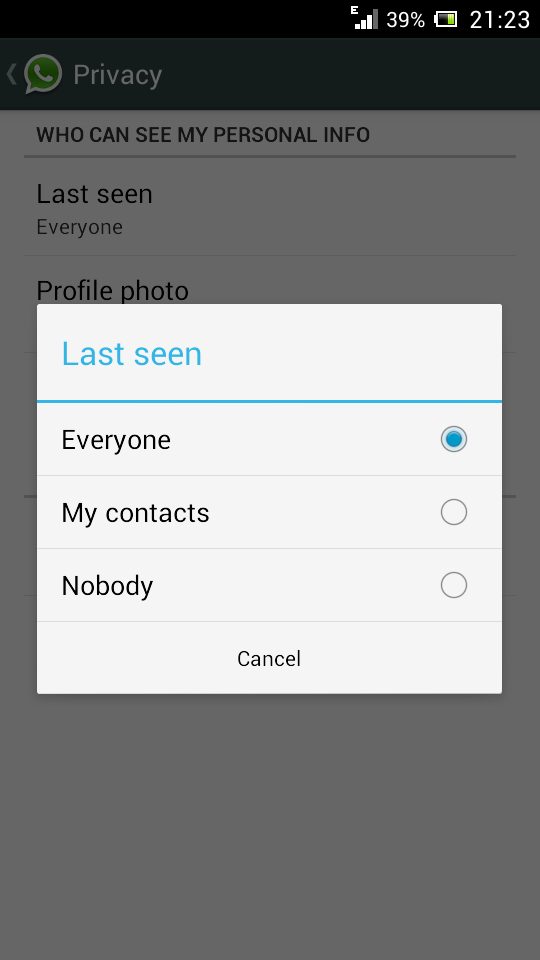
WhatsApp shows ‘last seen’ time at the bottom of the conversation telling your friends about the last time you were on WhatsApp. This will be helpful sometimes, but most of the time this feature troubles you when you want to stop the conversation or want to hide yourself from others. Earlier there are many third party Applications available in Google Playstore to hide ‘last seen’ feature. By the recent update, you can use this feature without installing any other apps. Download the latest version of WhatsApp from the official website to enjoy this feature.
hide-last-seen-whatsapp
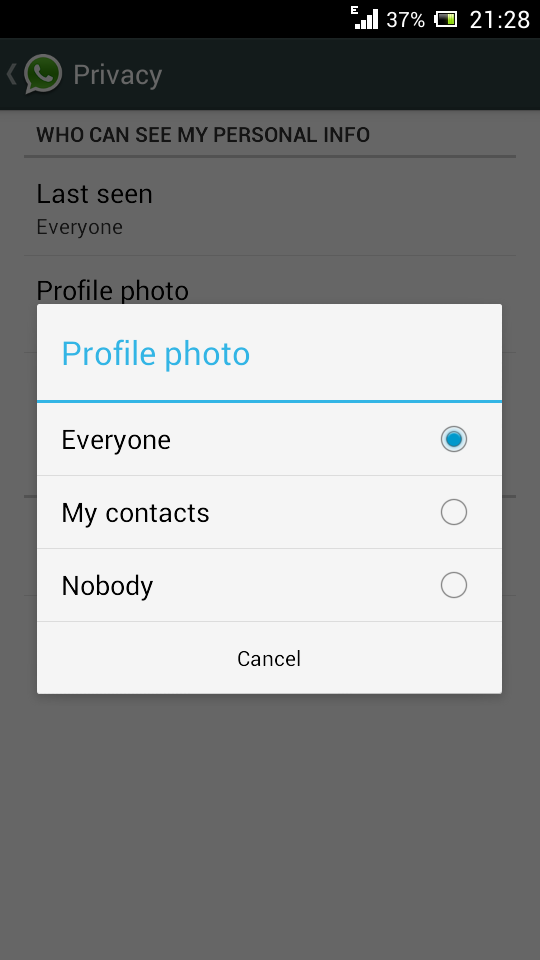
To hide last seen feature, Open WhatsApp, Go to Settings > Account > Privacy > Last Seen. There you can select three options, Everyone, My contacts, Nobody. Select any one of them

2. Lock WhatsApp with Password - Best WhatsApp Trick

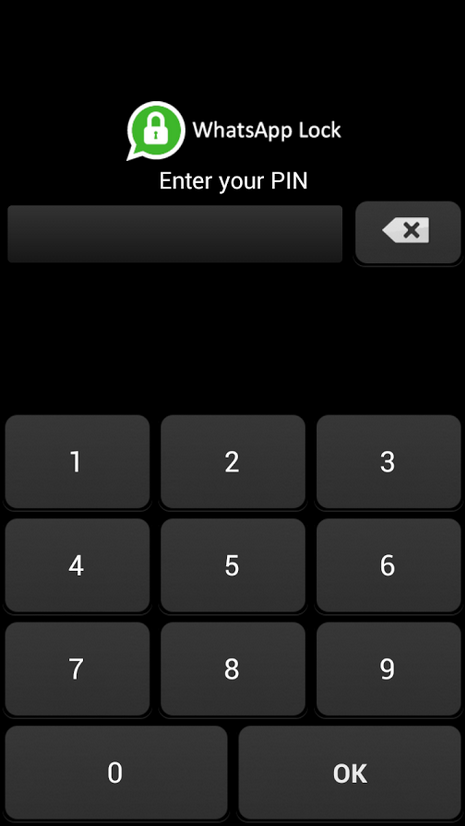
Generally we do personal chat on our whatsApp and we don’t want others to read our personal messages, as whatsApp doesn't have any login details and other person can easily read your personal messages. There are many Apps to block the unauthorized access to your WhatsApp messages. The best App we found is WhatsApp Lock.
lock-whatsapp-password
Download WhatsApp Lock from the link below and it protects your messages with a password. So that any other person cannot enter to your Whatsapp.

3. Send PDF, ZIP, APK files via WhatsApp:

whatsapp-trick-to-send-any-type-file
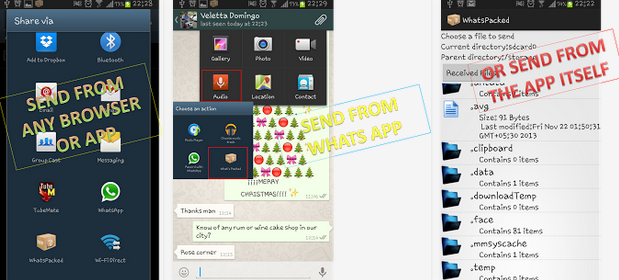
As we all know that WhatsApp doesn’t support to send other files than audio and video formats. Sometimes you may have to send some Apk files, ZIP, PDF or files of any other format. By using this cool trick you can send files of any type. Download Whats Packed 2 ads, from this App you can send a PDF, ZIP or any other files to your whatsApp contacts. The person who is receiving the file also have to install this App.
Download: Whats Packed 2 Ads

4. Extend WhatsApp Free Trial Period: 

As we all know that WhapsApp is not available for free, we only get a free trial period for 1 year to use it. After one year we have to pay approximately 1$ to use it. By using this cool WhatsApp trick you can extend your Whatsapp for one more year, truly speaking this is a very simple trick that works fine for now.
Just before completing your free trial period, delete your WhatsApp account permanently, and then create a new account. This requires less than 5 minutes, but you can extend your WhatsApp account for one more year. To delete your account, go to Settings > Account > Delete My Account. Enter your mobile number in the text field and delete your account. Now create another new account same as you created for the first time.
Now go to account and check your status, you will be increasing your free trial period for one year.

5. Recover deleted Conversions:

backup-deleted-messages-whatsapp
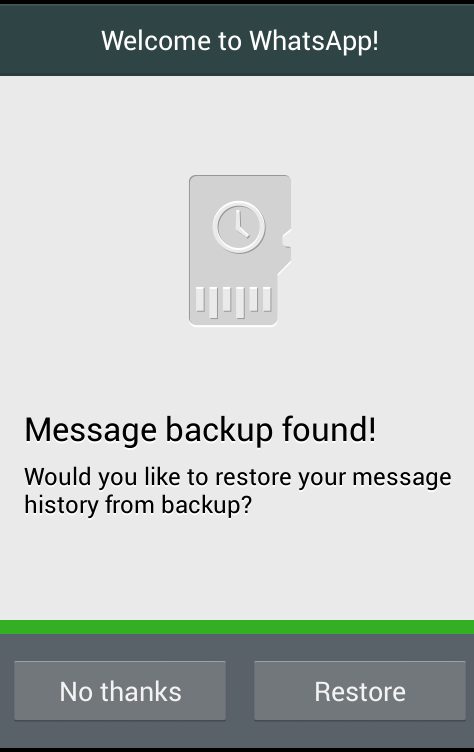
Sometime you may accidentally delete your WhatsApp conversations, and if you want to get it back. Then this trick is especially for you. Generally WhatsApp backups all the conversations and it will be stored in phone’s memory.
If you want to restore conversations, just uninstall the WhatsApp and re-install again. While re-installing WhatsApp, it will ask you whether to restore messages history or to continue without restoring. Now, click on Restore to get back your deleted conversations.

6. Download WhatsApp for PC / Laptop:

Yes!!! Now you can even install WhatsApp Messenger on your PC or Laptop and start chatting with your Friends on WhatsApp. To install WhatsApp on your Computer or Laptop you need to download an Emulator software. The best Emulator software we found is Bluestacks. Download the Bluestacks for official website. Then after run it on your PC or Laptop. After installing Bluestacks, open it and search for WhatsApp, install it and start using WhatsApp on PC.
 
7. Create Shortcuts for Important Contacts:
Here is a simple trick to create a shortcut for WhatsApp contacts. In Android phones you can easily create a shortcut for a Group or a Contact by having a long press on it. A tab will pop ups and then select add conversation shortcut. That's it; a shortcut will be created for any contact or group.
create-shortcuts-whatsapp-contacts
 But it is not much simple in case of IOS, for that you have to install a third party application called 1TapWA to get this feature. This app also has some extra features like photo editing and action scheduler.

8. Trick to Stop Auto downloading images and videos:

stop-media-auto-download-whatsapp
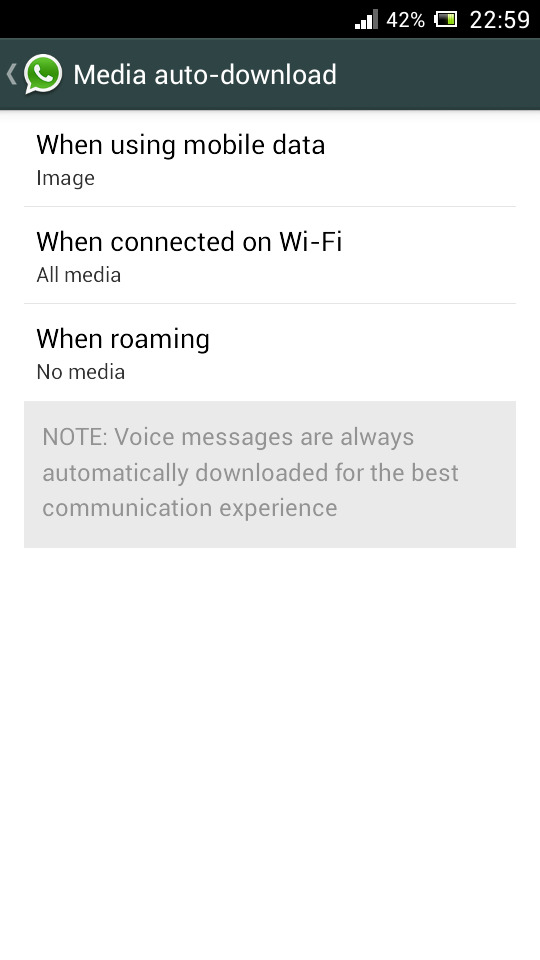
WhatsApp has a default feature of automatically downloading all the media files such as images and videos. Sometimes this may kill your mobile data and battery life when you have a very low data balance on your mobile. So this trick will be helpful to stop auto download of images or video.
To disable auto download feature, open WhatsApp go to Settings > Chat settings > Media auto-download. There you will find the option as shown in above screen shot, change the settings as per your need. Here I stopped to download only video files on mobile data.
  Also Check: Best Racing Games for Android

9. Cool WhatsApp trick to Hide the sent image with other Image

Sounds cool right? yes you can hide the images that you have sent to your friends inside any other wierd images. Magiapp tricks App for Android and Fhumb App for iPhone allows you to hide the sent image inside other images.
This is how the app works, the image that you have sent is replaced with the other image, when they click on the image they will be seeing the orginal image. Unfortunately this trick won't work for Blackberry and Windows phones.

10. Get your WhatsApp Statics:

Want to know how much time you spend daily on WhatsApp? You can get the information about sent messages, received messages, media bytes sent/received by going to Settings > Account > Network Usage. If you are not satisfied with this statistics then you must download WATSTAT App, this App will give the information regarding total time spent, message distribution, active timings and much more about your WhatsApp usage on colorful graphs.

11. Hide your WhatsApp profile picture:

hide-profile-pic-whatsapp
Hiding Profile Photo option is only available for the latest version of WhatsApp. If you are not using the latest version of WhatsApp then download it from here. After installing just go to Settings > Account privacy. Then click on Profile Photo, select any of the three options according to your needs - Everyone, My contacts, Nobody.

12. Stop WhatsApp Images appearing in Photo Album:

Images or Video files sent to you on WhatsApp by your friends, crush or business partners automatically appears on photo Gallery or any other photo viewer Apps. Sometimes there may be private images, so if you want to stop your WhatsApp images appearing on Gallery, follow below the trick for both Android and IOS.
stop-whatsapp-images-gallery%5B1%5D
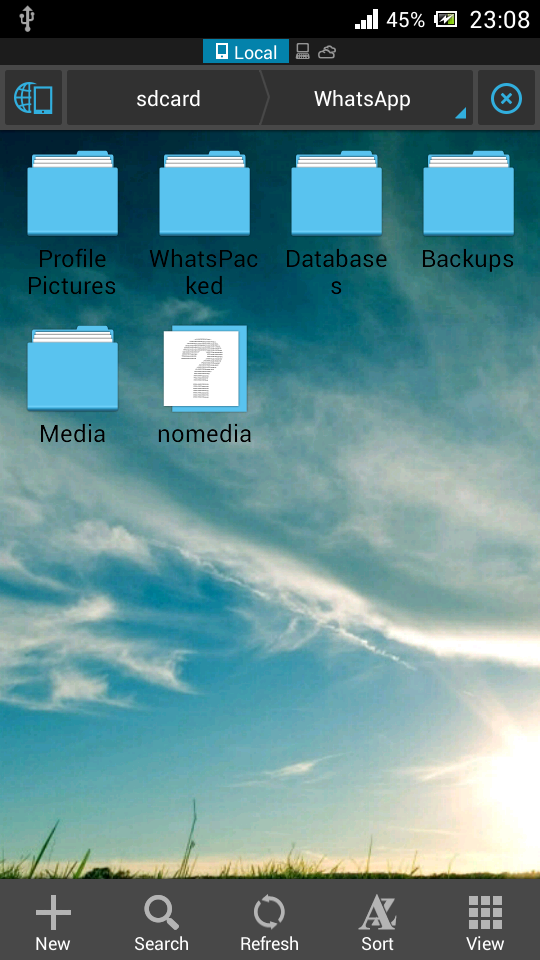
For Android users: To stop WhatsApp images appearing on image gallery you need to have a File Manager Application. Here I am using ES File explorer App. Now Open ES File Explorer App, Go to WhatsApp folder, open WhatsApp images folder and create a file with name .nomedia. To do this Tap New button in the lower left, choose File and create a file with name .nomedia
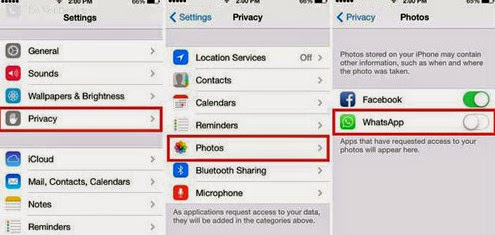
For IOS users, just go to Settings > Privacy > Photos and uncheck WhatsApp.
stop-whatsapp-images-appearing-album

13. Create Fake Conversation on WhatsApp - Best WhatsApp Tips and Tricks

Ever thought of creating a fake conversion to prank your friends? Yes you can create fake conversation by using Whatsaid App. By using this App you can easily create fake conversation on WhatsApp and prank your friends. 

14. WhatsApp trick to share a file More than 16MB size:

By default WhatsApp doesn't allow to share a file of size more than 16MB, Although images and audio messages doesn't occupy more than 16MB but when it comes to Videos, they may occupy more than 16MB size. To send video's of size more than 16MB you have to compress the size of video. By using Video Converter Android, you can compress the actual size of videos without losing much quality and later you can send video on WhatsApp.
Download: Video Converter Android

15. Trick to Install WhatsApp on Mobile without SIM Card:

For this trick you need to have two mobile phones, one to verify the number and other to use WhatsApp on it (Without SIM Card) and a SIM Card with mobile number that is not registered on WhatsApp.
This number is used to configure your WhatsApp on Mobile that doesn't have SIM Card.
First of all connect your mobile to internet through Wi-Fi or Dongle, download WhatsApp on it. Then register with the mobile number that we discussed earlier. Now you will see a message with verification fails, don't worry you will receive the verification code within 10 minutes. Now you will get an SMS with verification code to the registered number, select 'call me to verify the code' option and verify the code. That's it now can use WhatsApp on your mobile without having a sim card.

16. WhatsApp Trick to Migrate Conversation from one Phone to other:

Here is simple trick to transfer all WhatsApp conversions from old phone to new phone. Just before installing WhatsApp on your new phone, take a while and go to File manager > WhatsApp Folder > Databases on your old Android phone. Now copy all the backup files to your PC. Now install WhatsApp on your new Phone, place these files at the same location on new Phone and restart the Application. That's it now you can see all your old conversations on your new phone.

17. Change Phone number linked with WhatsApp:

Do you want to change your SIM Card and continue with the same Phone, then you no need to uninstall and reinstall WhatsApp to change WhatsApp number.
whatsapp-trick-change-mobile-number
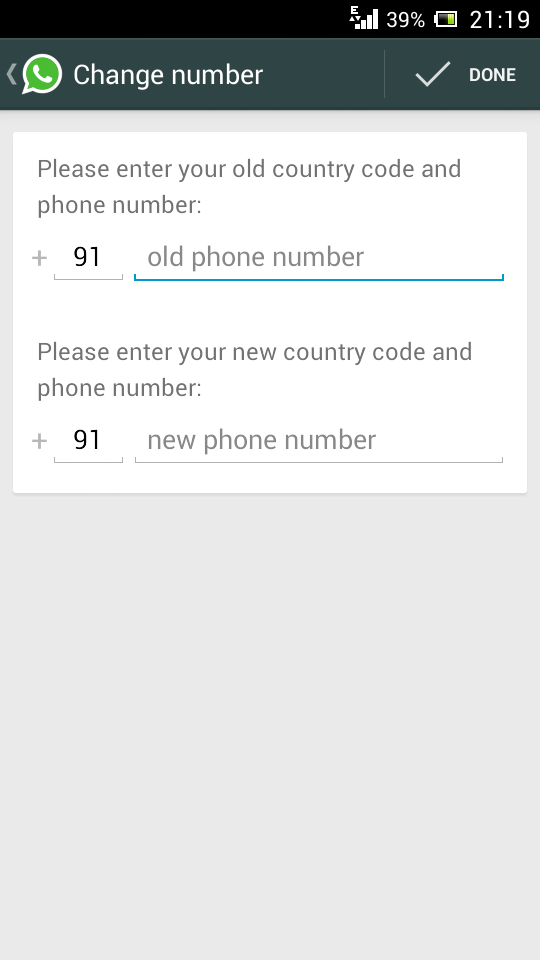
There is a default option available on WhatsApp to change mobile numbers. For that go to Settings > Account > Change number. Enter both old and new phone numbers and press Done.
Now verify your new number, all the Groups, messages will be migrated to your new Phone number.

18. Hide your Mobile number in WhatsApp Groups:

Do you often involve in WhatsApp Group chats with unknown people? If you want to keep your mobile number disclose to others then this is an awesome trick for you.
1. First of all, uninstall and reinstall WhatsApp on your Android Phone.
2. At the time of verification, put your mobile in flight mode or change message the center number.
3. Choose 'Verify through sms' and enter your email id and Click on send. Now Without wasting a single second, click on Cancel. This terminates the authorization process.
4. Now you have to spoof that message, for that download Spoof Text message.
5. Now go to Outbox > Copy the message details of Spoof App > send it to Spoofed Verification
6. Use the below details
To: +447900347295
From: +(Country code)(mobile number)
Message: Enter you email id
Now a message will be sent through that spoofed number. Now that Spoofed number is visible to others instead of your original mobile number.
That's all about the Best WhatsApp Tips and Tricks for iPhone and Android 2014. If you find any other WhatsApp Tips and Tricks kindly share with us through your comments.
Read More

Friday, 17 October 2014

Best Facebook Tricks – Latest Tips

| |
0 comments

Facebook a Social networking website from whom no one is unknown these days.  It allows you to connect with anyone all around the Globe and Chat with them, Share Videos & movies and many more. As everyone know How to basic things on Facebook, Here we will Share some of the Latest Working Facebook Tricks which make your facebooking more interesting. There Tricks are well researched by our team all Tricks working. So let’s Go through these tricks once and use in your facebook account. 

1.Trick to update blank status:

Now you can update your Facebook status as blank.first login to your Facebook account.
  • now enter @[3:3: ] in your status box

  • if you want to update your blank status as long statement the paste the code again below the code just like below
                                         @[3:3: ]
                                         @[3:3: ]
                                         @[3:3: ]
                                         @[3:3: ]

2.Post animated (.gif) images on Facebook:

Many other Social networking websites like Google plus allows you to Share animated gif’s images which really looks pretty Cool, but if your daily Facebook you would be knowing that gif images are not allowed on FB. Don’t worry here is the trick to Post gif images on Facebook:-
  • Simple visit giphy website.
  • Now select a animated gif image which you want to post on FB.
  • Paste the image the link on Facebook Status and Voila its done !!

3.Invite all friends to Like a FB page with Single Click

You created a new Facebook Fan page but don’t have any likes on it. The best way to get Likes is to invite your all friends to like a Facebook page, but inviting your each friend manually takes a hell lot of time. But you can use the this Latest trick to invite all friends to like facebook page by a Single Click-
  • LogIn to your Facebook account and Open the Page for which you want to send invitations to your Friends.
  • Now Click on Invite friends Option and a pop up will appear.
  • Now simply press f12 key from your Keyboard and Chrome Console window will Open.
  • Copy the below posted Code and paste it in the Console window and you’re done !!
var inputs = document.getElementsByClassName(‘uiButton _1sm’); for(var i=0; i<inputs.length;i++) { inputs[i].click(); }

4.Download facebook photo Album in a single click:

now you can download  facebook photo album with a single click,all you need is to just go to app named Facebook2zip.com
check the process:
  • Step1: As soon as go the above app you are asked to Login with facebook just like in above picture
  • Step2: Now choose your friend from whom you want to download photo album you can see an arrow 2 pointing in the above picture
  • Step3: Now choose the album what you want to download
  • Step4: Just click Download button and save photo album to your desired location.

5.Post and Create Fake Facebook Status:

Now amaze your friends by posting Fake Status on your FB profile with anyone’s name whether it is Bill Gates to Mark Zuckerbergs. Just follow below simple instructions:-

Also Check :- Update Facebook Status With Fake Names.
  • Visit  The Wall Machine website.
  • And Connect it with your Facebook profile and Log in to it.
  • Now you’ll able to create any kind of Fake Fb Status and post on your profile.

6.Create a Video with your Facebook pictures:

now can create a video with your facebook pictures it is so easy you can go to pixable.com and login with your facebook account.

7.Find who unfriend you on facebook:

  • If you think that someone of your friends has Unfriend you on Facebook and your not able to find who is that.
  • Now you can use this Application to find the one who removed or deleted you from your Profile.

8.Post your staus in all facebook groups at once:

  • it is easy to post your status on your wall.when comes you have to post status in all groups it takes much time and even it is hard task.by using simple app it is easy you can post in all facebook groups at once
  • Go to Multi post application and login with Facebook.
  • you can also use another app click here

9.Sync Facebook Calendar with Google Calendar:

If you have been using Fb calendar as well as Google Calendar I’m sure it had been created a big mess to manage your important reminders, appointments and birthday. But now below we have showed How to Sync Facebook Calendar with Google Calendar:-
  • Open your facebook and Simply go to Events and head towards Calendar tab.
  • Now just Tap on setting and Click on the export button.
  • Now you have to Choose what you want to export “Friends birthday” or “upcoming events” select one which is appropriate to you and then Copy their link address.
  • LogIn to your Google account and visit Google Calendar page.
  • Now Simply Click on Other Calendars and tap on the drop down button and then Choose Add by URL.
  • Here you’ll paste the link which got from the FB calendar and Click on Add Calendar button.

10. Accept all friend request at once

  • Login to your FB account and visit your Friend request page.
  • Now Copy the below Code and Post it your friend request page address bar.
javascript:for( i = 1;i<document.getElementsByName(“actions[accept]“).length;i++){document.getElementsByName(“actions[accept]“)[i].click();}void(0);
  • And press enter…That’s it !! Now check all your friends would be added to your friend list.

13. Restore deleted Facebook Messages and Images

  • Simple Login to your facebook account and head towards general setting page through this link.
  • Now Click on Download a Copy of your Facebook Data
  • At the very next page a Download archieve button will be visible, Click on it and they might ask you to enter your FB password again, Just enter it.
  • When you click on Submit button and you will see download link for your data will be sent to your email id.
  • Now log in to your mail account and download the archive from the link which you received in your mail.
  • That’s it..!! Extract or Unzip the file and there would all information of your FB account such as messages, image, videos, etc.

14.Cool Facebook Chat tricks:

  • Send your Friends Cool messages in different Style like Upside down or flipped text and many more.
  • Visit this website from your Computer browser.
  • Now here type your desired text in dialog box and choose appropriate style.
  • Now Simple Copy the text and post it to FB status and it will appear in different style.

15. Visible Online for Whom You want:

Now you can visible online for whom you want.By using this trick you can chat with only with the persons whom you want.
  • Just go to Advanced chat settings by clicking on Gear icon below chat bar.

  • Then a pop up arises  just like below screen capture
  • Now click Turn On chat for Some Friends
  • Now add your friends in the options

  • finally click save option.

Thanks for reading this article and please LIKE OUR PAGE :- MY TRICKY ZONE  and keep in touch with us..   ENJOY....

Read More

Saturday, 11 October 2014

Samsung to launch Galaxy Note 4, here's its review

| |
0 comments

Introduction

From an oddball that everyone was laughing at to becoming one of the most important Samsung announcement of the year - the Note series got to a place where now everyone else wants to be in too, including Apple. Samsung isn't in too big a trouble just yet, but profits just can't keep climbing forever and the company needs the Galaxy Note 4 to become a success in a way the Galaxy S5 couldn't.
That's some heavy burden to carry, even more so considering competition is at an all-time high, now that Apple finally entered the phablet game. Yet the fifth Galaxy Note phablet (you didn't forget the Note 3 Neo, did you?) is as well prepared as one could hope for. Amazing hardware is what put the Notes on the map, but two generations after the original the software support finally caught up to make last year's Galaxy Note 3 a genuinely exclusive package.

Samsung Galaxy Note 4 official images
Now the Samsung Galaxy Note 4 comes to finally add the last seemingly missing piece of the puzzle - the exclusive design. A metal frame and a curved glass over the screen along with a refined faux leather back work together to make the latest phablet one of the handsomest pieces of hardware around. And as you can see in the list below, Samsung didn't have to make compromises elsewhere.

Key features

  • 5.7" 16M-color QHD Super AMOLED capacitive touchscreen with curved Gorilla Glass 3
  • Android OS v4.4 KitKat with TouchWiz UI
  • LTE Cat 6 support
  • Quad-core 2.7GHz Krait 450 CPU, Adreno 420 GPU; Qualcomm Snapdragon 805 chipset
  • 3GB of RAM
  • 16MP OIS camera with 2160p video recording @ 30fps, 1080p @ 60fps, 720p @ 120fps
  • 3.7MP front-facing camera, 1080p video recording
  • Wi-Fi a/b/g/n/ac, Wi-Fi Direct and DLNA, Download booster
  • GPS with A-GPS, GLONASS
  • 32GB of built-in storage; microSD card slot
  • S Pen stylus
  • Enhanced Multi-window multitasking support
  • Fingerprint scanner with PayPal support and private mode access
  • microUSB 2.0 port with USB host and MHL 2.0
  • Bluetooth v4.0
  • NFC
  • IR port for remote control functionality
  • Standard 3.5mm audio jack
  • Accelerometer and proximity sensor
  • Heart-rate monitor
  • Active noise cancellation with a dedicated mic
  • 3,220mAh battery

Main disadvantages

  • Rear-mounted mono speaker
  • microUSB 2.0 is a downgrade over microUSB 3.0 on the Note 3
  • The uneven gap between the metal frame and curved screen glass takes a few points away from an otherwise excellent build
  • No enhanced resistance to liquids or dust
  • Wireless charging support only with an optional back cover
The first QHD AMOLED screen and the first Snapdragon 805 smartphone to go global as well as the best S Pen yet - the list of things for Galaxy Note 4 owners to brag about is certainly not a short one. But a flagship's worth is not in the number of exclusive features - the areas where it fails count double against it. And while the Galaxy Note 4 has very few things to be ashamed of, it's our duty to check against any nasty surprises.
Samsung Galaxy Note 4 Samsung Galaxy Note 4 Samsung Galaxy Note 4
Read More

Sunday, 14 September 2014

TOP 10 SHOPPING WEBSITES IN INDIA

| |
0 comments

Read more at http://www.way2hacking.com/2014/09/top-10-shopping-websites-in-india.html#fT0oZPlDEHUtIBUP.99
Read More

Monday, 8 September 2014

WhatsApp: how to get “chat heads” notifications

| |
0 comments
When Facebook Home first was introduced, it brought with the “chat heads” that provided a nice little notification in the corner of your display with a picture of your contact. You could then click on the picture and then seamlessly read and respond to messages without having to stop what you’re currently doing on your device.  If you’ve liked the way this works, but use another messaging service more than Facebook Messenger, take a look below and we will explain how to achieve the same results.
Facebook Messenger isn't the only messenger with chat head functionality.
To achieve this, you’ll need to download an application called Seebye Chat Heads which is available via the Google Play Store. It is a module of the Xposed Framework and does require root access.

Downloading Seebye Chat Heads

Thanks to this application, we can get the chat head notifications for other messaging apps, such as WhatsApp, to appear on the screen with a small circle and a picture of the contact. By click on this bubble, you’ll get access to three options in which you can see the conversation, mark it as read, or even reply.

chat heads
Much like Facebook Messenger, the chat heads can be moved anywhere on the screen so as to not obstruct your view of the display. As well, to get rid of a chat head, you simply have to do a long press on the icon and then drag it to the bottom of the screen where a "X" will appear. If you let go over the "X", the chat head will disappear from the display.
Read More

Friday, 5 September 2014

5 Interesting Facebook Tricks You Might Not Know

| |
0 comments
At this point, you are all probably pretty familiar with Facebook, and some of the more common features like updating statuses, checking-in, browsing profiles, pages, and apps, and many more day to day actions.
However, most people are not aware of a number of interesting, but mostly useless, tricks and hacks, which you can perform on Facebook today.
Here are five of our favorite useless, but interesting, Facebook tricks and hacks for you try:

Removing Your Last Name in Your Facebook Profile


The Trick:

As part of Facebook’s security checks, you are required to completely fill out your account details to successfully create an account. By default, Facebook requires every user to enter their full name prior to saving their profile settings.
With this trick, you will be able to bypass Facebook’s restrictions and drop your last name.

How to Do it:

1) Open Mozilla Firefox (Firefox is required for this hack to work)
2) Go to Options -> Advanced -> Network -> Settings -> Connection Settings -> Manual Proxy Configuration
3) In the HTTP Proxy Field, enter 103.10.62.30, port 8080, or use any Indonesian Proxy.
SEJ 5 5 Interesting Facebook Tricks You Might Not Know

4) On your facebook profile, go to Account settings — > Change Language to BAHASA INDONESIA
5) Remove your middle name & last name.
SEJ 6 5 Interesting Facebook Tricks You Might Not Know

Adding Animated Custom Tabs

The Trick:

Facebook doesn’t allow users to upload animated GIFs anywhere on the site, so if you wanted to have an animated GIF somewhere, you’re out of luck, unless…
There is a trick that allows anyone, who has the following resources, to bypass this limitation in uploading animated GIFs for custom tabs.

How to Do it:

1)       You must have Adobe Photoshop C5 & Quicktime Player.
2)       Select the animate GIF you want to upload.
3)       Open Adobe Photoshop CS5 and go to File > Import > Video frames to layers. In the File Name box, just enter *.* as your filename and choose your GIF image.
4)       Resize your GIF to 111 x 74 pixels to fit the custom tab image .
5)       Save your file in a PSD format. Check the save option, ‘LAYERS’

Creating Your Own Emoticon on Facebook Chat

The Trick:

While this is not actually new, many people have no idea about this feature. Since 2011, Facebook has allowed users to chat with their friends using custom emoticons, and now you can too. Just by getting a page’s or a profile’s ID or username, Facebook will let you use their profile pictures as your chat emoticon in thumbnails…
*note this only works in the Facebook Chat and not in updates. 

How to Do it:

1)       Go to any profile, official Page, or event that you want to use as an emoticon.
2)       Look for the profile ID at the end of the URL, such as “Mcdonalds” from https://www.facebook.com/McDonalds
3)       Place that username or number in double brackets like [[Mcdonalds]]
Note: Pages with no username /vanity URL  e.g https://www.facebook.com/McDonalds have default ID numbers displayed on their URLs (https://www.facebook.com/pages/Socially-Awkward-Penguin/98438140742).  So when you cannot find  a profile or a page’s username, just refer to the numbers at the end of the URL, instead. 
4)       Enter that into a Facebook Chat or Message field.
Rage Faces IDs:
Here is a collection of a few rage faces courtesy of Reddit.
Using Profile IDs
Troll face: [[171108522930776]]
Are you f****** kidding me : [[143220739082110]]
Not bad Obama: [[169919399735055]]
Me G usta: [[211782832186415]]
Mother of God: [[142670085793927]]
Cereal Guy: [[170815706323196]]
LOL Face: [[168456309878025]]
NO Guy: [[167359756658519]]
Yao Ming: [[218595638164996]]
Derp: [[224812970902314]]
Derpina: [[192644604154319]]
Forever Alone: [[177903015598419]]
F yeah: [[105387672833401]]
Challenge accepted: [[100002727365206]]
Okay face: [[100002752520227]]
Poker face: [[129627277060203]]
Okay face: [[224812970902314]]
Socially awkward penguin: [[98438140742]]
No: [[167359756658519]]
MOG: [[142670085793927]]
Like a sir: [[168040846586189]]
Using Usernames / Vanity URL
Not Bad: [[NotBaad]]
Rage face: [[FUUUOFFICIAL]]

Making Your Profile Photo Un-clickable


The Trick:

Not everyone really wants to have their header image clickable, but yet that’s the way Facebook header images work, or do they? Well, if you’re curious, you should give this one a try:

How to Do it:

1)       Go to your Albums – > Profile Pictures
2)       Select your current profile picture.
3)       Adjust privacy setting to “Only Me”

Selecting / Inviting All Friends


The Trick:

Selecting and inviting all of your friends in an event can be a tedious task, especially if you have more than 1,000 friends to send invitations to.
Luckily, this trick that allows users to select/invite all of their friends in an event or an app – with just one click.

How to Do it:

1)       Open Firefox and go to your Facebook page to invite all friends to like your page.
2)       Select “All Friends” instead of “Recent Interaction” so that you can invite all friends to your page. Scroll down till all of your friends are shown in the page.
3)       Press Ctrl+Shift+K and a small window will appear at bottom.
4)       Paste the below code in it and click enter.
javascript:elms=document.getElementsByName(“checkableitems[]“);for (i=0;i < elms.length;i++){if (elms[i].type=”checkbox” )elms[i].click()};
Hacks and Tricks like the above, should always be attempted using caution. We are not aware of anyone ever getting in trouble for using the above tricks, but in some cases they do bypass the intended functionality of Facebook, so be careful.

Which of these tricks is your favorite? If you have any new Facebook tricks you would like to share, please let us know in the comments!

Read More

Saturday, 16 August 2014

List of Whatsapp Tips, Tricks & Awesome Hacks

| |
9 comments


Whatsapp is considered as the most preferable chatting client for iPhone and Android devices as its pretty user friendly interface and provides all the basic needs a chatting client requires, you can easily share images, audio notes, live recordings, share your current location and even upload small videos. Well earlier we have posted on how you can easily install whatsapp messenger on your windows pc in case you wanna use it right away from your computer you can do that too.
But now we found some nice hacks and tricks that work pretty well with whatsapp and people are seriously searching for this constantly. So just check the full list provided below and enjoy these awesome hacks.

#1. Prank your Friends by Changing their Profile Picture

funny-scary-images
Well just found this awesome trick, if you want to prank your friends by displaying then how they actually appear in your profile, then we have any trick for that. Actually by doing some files replacement you can change the actual profile pic of you friend pretty easily to any image.
  1. Well just search for some nice scary or funny image that you think could easily paralyze your friends on how they actually look. (just search these images on Google Image search).
  2. Now after you have found a nice image just make sure to resize the image to 561 X 561 Pixel dimension as its must. (you can use RIOT image resizing feature for this).
  3. Now you need to navigate to the following path SD Card > Whatsapp > Profile Pictures.
  4. Now you will see your friends profile pictures with name's similar to their phone numbers with prefix attached to it.
  5. Now just rename your new image to that same file name and then replace the old image with the one.
  6. Well for iOS device use iFunBox to do this same trick and on android you can use a nice file manager to achieve this effect.
Now simply restart your device and your new profile pic will be rocking, now simply show and ask your friend what kind of profile picture they have uploaded it looks ugly, they will be amazed :p

#2. Getting back Deleted Messages on Whatsapp !

Deleted few conversations mistakenly, wanted to get all those conversation back as it means you a lot, well you might not be aware about the automated Whatsapp backup that it creates everyday @ 4PM which is actually store in the SD Card of your Android Device, well we are going to see how you can easily restore that database.
  1. Navigate to the Whatsapp Database folder, SD Card > Whatsapp > Databases.
  2. In the database folder you will see some files something like msgstore-2014-01-04.1.db.crypt. So as you can see these files even contain the date on which its created + you will also see a file msgstore.db.crypt, well this is the main file.
  3. So now just rename this file msgstore.db.crypt to something like backup-msgstore.db.crypt.
  4. Now after you have successfully renamed your file, just change the another file that contains the appropriate date like choose the one that's latest or the one you think that might contain your chat conversation.
  5. Get-back-deleted-whatsapp-messagesSo now rename that file to msgstore.db.crypt and then the last step is to navigate to Setting > Applications > manage applications > Whatsapp, and click on Clear Data option to remove all the data.
  6. That's it now your msgstore.db.crypt will be restored and obviously that the file that contains your chat conversation.
  7. So now as soon as you open your WhatsApp again it will ask you to restore from the Backup.
  8. Just press Restore option and everything will be restores pretty easily.
So guys this was the easiest but little but lengthy way to restore your deleted conversation on WhatsApp. So now do no worry in case you have to delete those conversation you know where and how to restore then later :)

How to View WhatsApp Messages Backup File Online !

recover-messages
Well thinking if there is any easy way by not restoring your file onto the whatsapp messenger but still wanna have a look on what conversation you had, well there is awesome online service called "RecoverMesages.com" that allows you to upload your .crypt file that you got from your SD Card online and view your messages easily, well just visit the above mentioned website , upload your date and hit SCAN.

#3. Hide Last Seen Time from your WhatsApp Profile

Don't like to display that last seen time to the another person, just want to stay hidden, well earlier it was not possible and we use to use some 3rd party apps, well now it can done officially.
  1. Open WhatsApp application on your device.
  2. Navigate to Settings > Chat Settings > Advanced > Last Seen Timestamp.
  3. It will be one just disable it and that's it now no one can see your last seen timestamp. So its officially disabled.

#4. Hide One Image into Another for Nice Prank :p

magiapp-whatsappWell you might have faced this thing but you might ignored as you thought it could not be possible, but yes you can easily fake any image by just simply using original image as your masked image and using another image as your fake image.
Well we will be using the Magiapp for Android that will allow you to hold two images one your True Image and the other one will be your Fake image that will shown when someone clicks on your original image.
  1. Download & Install Magiapp for android.
  2. Now after installing this wonderful app just fire it up and then you will see interface something lie in the image on the right.
  3. Now just click on the True Image option and choose your original image and then click on the Fake Image option and choose your pranky image.
  4. Now after selecting your images just press Do Magic ! option and voila! its done now just share your image with everyone.

#5. Hacking your Friends WhatsApp Conversation :)

Well now the same trick mentioned in the first step can be used in order to hack your friends WhatsApp conversation. You can easily snatch the .crypt files from your friends SD Card and then view them online using the RecoverMessages website.
  1. Just try to explore the friends SD Card and navigate to SD Card > Whatsapp > Database folder.
  2. Here you will two files -msgstore-yyyy..dd..db.crypt which will exactly contain date and year when the backup was created.
  3. Simply copy this files to your computer and then upload this file to "RecoverMesages.com" to view them online.
That's it now you have easily hacked your friends Whatsapp Database, now you can view all the conversation and even ask him about his or her crush ;p, so guys this how hacking Whatsapp conversation works, so enjoy.

#6. Password Lock your WhatsApp Application

whatsapp-lock-androidAre you really serious about the security and privacy for your Whatsapp conversation, well now just add a nice password on your Whatsapp application, so that no one else except you can open your Whatsapp account.
  1. Download & Install WhatsApp Lock for Android.
  2. It's a simple application that allows you to add a four digit lock passcode to your Whatsapp application.
  3. Now after installing the application it will ask you to store a four digit passcode, just do that.
  4. It even contains an Auto Locking feature that will lock your Whatsapp automatically after sometime.
The best thing about this application is that if someone enters wrong passcode few times then if your phone contains the front camera then it will capture the image of the intruder and store it safely.


So guys these were the few tips, tricks and hacks for the whatsapp messenger, hope you liked them and if you really like this post do share it with all your friends. Do subscribe to our newsletter for receiving some awesome updates from our blog right in your email and you can even become our fan on facebook :)
Read More

Thursday, 14 August 2014

25+ Best Whatsapp Status Quotes Of All Time

| |
2 comments


Hello friends I'm back with some exciting whatsApp Status updates....

Whatsapp has become the most popular chat app among the smartphone users arond the world.So every person wants to show his or her mood in their status. Status is very helpful for your friends in knowing what your mood is right now.
So i have written this post to provide you the best whatsapp status quotes of all time. Have a look at these eye catching lines.
 
1. Don’t judge someone’s life until you’ve felt their pain.
2. I don’t care if you talk about me behind my back because good or bad, my name is still in your mouth.
3. Today I feel myself faster than the wind and harder than a rock.
4. Do not look down or you’ll lose
sight of the horizon of your goals.
5. Never mind that because of the
fatigue I cannot walk, I won’t never
stop, the goal is waiting for me.
6. I love everything, that you and I can call "ours" !!
7. Never apologize for being you.
8. If they don't chase you when you
walk away, keep walking.
9. Whatever i perform is not to
impress you, But to express myself…
10. Attitudes are contagious. Are yours worth catching?
11. Everyone has his burden. What
counts is how you carry it.
12. If you can quit, quit. If you can't quit, stop complaining - this is what you chose.
13. “Well, if it can be thought, it can be done, a problem can be overcome”
14. “No matter how bad things get, just keep looking up. Just keep looking up her skirt. Or his kilt. ”
15. “Boys Shack, MEN build homes.
16. “There’s nothing more dangerous than a boy with charm.”
17. “As usual, there is a great woman behind every idiot.”
18. “A girl should be two things: classy and fabulous.”
19. “When a man gives his opinion, he's a man. When a woman gives her opinion, she's a bitch.”
20. “When someone loves you, the way they say your name is different. You know that your name is safe in their mouth.”
21. “I'm not young enough to know
everything.”
22. “Man may have discovered fire, but women discovered how to play with it.”
23. “Man, when you lose your laugh you lose your footing.”
24. “And now, I'm just trying to change the world, one sequin at a time.”
25. " Y0u sh0uld've slapped Me the day We f!rst met !nstead 0f Smiling coz n0w i jst can't feel any Pa!n after u played ma heart t0 th!s much beat!ng. "
26. " Wow! The last time I saw something like you, I flushed it!
Read More

Tuesday, 25 February 2014

How To Download APK Files Directly From Google Play?

| |
0 comments


Download APK Files
Usually, people get apps for their android device by downloading them from Google Play Store. The downloader gets the app installed for you, without bothering you with unnecessary details like the files required for installation etc. But what if you don’t have access to internet and you want an app installed on your phone? Surely you can’t do so without downloading stuff required for the installation. The solution to this problem is simple - just get the APK package of the desired app, and keep it beforehand for later when you need.
APK stands for Android Package. It’s actually a package which contains all the files necessary for installation. In other words, it’s a ‘standalone’ installer for your app which doesn’t require internet connectivity. You can get APK package of an android application from Google Play Store by simply adding an extension called ‘APK Downloader’ to your Google browser. Here we have a step by step procedure which will tell you how to add APK Downloader to your Google Chrome and subsequently, use it for getting APK packages
Once downloaded, the extension is to be added to your Google Chrome Extensions. To do so, follow these steps.
  • Go to the ‘Tools’ menu of your Chrome and select ‘Extensions’.
  • Locate the file you just downloaded (with extension ‘.crx’)
  • Now drag the file to your Extensions page.
  • For confirmation look for a small Play Store icon on your address bar
To configure the APK Downloader extension for your android device
  • Select the ‘options’ button on the menu
  • Enter the Gmail ID (the one required for Play Store)
  • Enter your password and device ID of your android device

For those of you who don’t know where to get device ID of your android device
  • Dial  “*#*#8255#*#*” from your android phone
If you are using an android tablet
  • Go to Google Play Store
  • Download ‘Device ID’
Device ID
Device ID will get your device ID for you.

Getting APK of an app is simple, just locate the app you want (on Play Store) and clicking on the APK icon on your address bar will get you your precious APK for that app. Another good thing about APK package is that it makes app sharing simple, now you can share an app with your friends by simply transferring the package to their device.
APK Icon
The APK and APK Downloader will make your life a lot easier if you face problems in installing your favorite apps due to connectivity issues or if you like to share your favorite apps with your friends.
Read More

Downloading Torrent Using Internet Download Manager

| |
0 comments

Downloading Torrent Using Internet Download Manager
Hello friends, today i will show you the way to download torrents with Internet Download Manager. Torrent is tiny file with .torrent extension which allows you to download huge amount of data. We use torrents to download various stuffs like movies, games, software package and plenty of different things. you'll transfer torrents from several website.  The transfer speed for torrents depends on seeds it has. It will make difficult for you to download files with very low or no seed counts. However with the assistance of this trick you'll be able to download torrent file with IDM. This tool can be really helpfull when you want to download file that has very low seeds. IDM is the quickest file transfer manager on the internet market. So lets begin!

How To Transfer Torrent With IDM

1. First download the torrent file with .torrent extension which you wish to download from the internet directly without any torrent client like utorrent.
Downloading Torrent Using Internet Download Manager

2. Now open zbigz.com and you will land on its homepage.
3. Then Click on upload Torrent and browse your torrent to transfer and click on Go.
4. Then it will ask you for Free or Premium service, choose Free to proceed further.
5. It will take some time to cache your file. Once the caching is done, click on transfer button to download your file as shown below.
Downloading Torrent Using Internet Download Manager
6. You should have internet download manager installed on your computer so that download start inside IDM. If you don't have IDM don't worry it will download directly.

Note: If you decide on to use Free transfer then you wont be able to transfer file of more then 1 GB
Read More

Tuesday, 31 December 2013

How to Monitor and Control Your Children’s Computer Usage on Windows 8

| |
1 comments


image
Windows 8’s Family Safety features allow you to monitor your children’s computer usage, get weekly reports, set time limits for computer use, filter inappropriate websites, block children from using certain applications, and more.
When you create a new user account in Windows 8, you’ll be able to designate it as a child’s account. This enables the Family Safety feature.

Creating Children’s Accounts

Use Windows 8’s PC Settings application to create a new user account for a child. (Mouse over the bottom or top right corners of the screen,  move your mouse cursor up or down, click the Settings charm, and click Change PC Settings at the bottom of your screen.)

Select the Users category and click the Add a user button to add a new user account.

Enable the “Is this a child’s account? Turn on Family Safety to get reports of their PC use” check box while creating a user account.

Viewing Reports

Assuming you’re using a Microsoft account with Windows 8, you can open the Family Safety website at familysafety.microsoft.com and log in with your Microsoft account credentials.
You can view reports and edit family safety settings for each child from here. You can also add another parent to give multiple people access to the Family Safety page. Settings you specify here will synchronize to each Windows 8 computer you and your children use.

Click the View Activity Report link for a child to view a report of that child’s computer usage. You’ll also get weekly summary reports in your email inbox.
The reports show which websites your child visits most frequently, how many hours they’ve been logged into the computer on each day of the week, the searches they perform, which apps and games they use, and which apps they’ve downloaded from the Windows Store.

According to Microsoft, Family Safety is designed for a “monitor first” approach. First you monitor a child’s computer usage, and then you can optionally put restrictions in place. For example, you can block a website directly from the Web activity report.

The activity reporting feature can also be turned off – for example, you may want to impose computer time limits but not monitor what your children do on the computer.

Controlling Computer Usage

Click the Edit Settings link for a child to customize the child’s Family Safety settings.

For example, Web Filtering is turned off by default, but you can enable it and set a filtering level.

You can set time limits for your children’s computer use, either by granting them a limited number of hours each day or imposing a curfew time, after which they won’t be allowed to use the computer.

You can also block access to specific apps and games from here.

Log into this website to monitor and control your children’s computer usage from anywhere.
Read More
Sarv. Powered by Blogger.